Changing the look of Sales Portal
You can customize the look of Sales Portal to better match your organization's style.
From the Admin page, go to More Options → to change these settings.
Changing the login page theme on Sales Portal
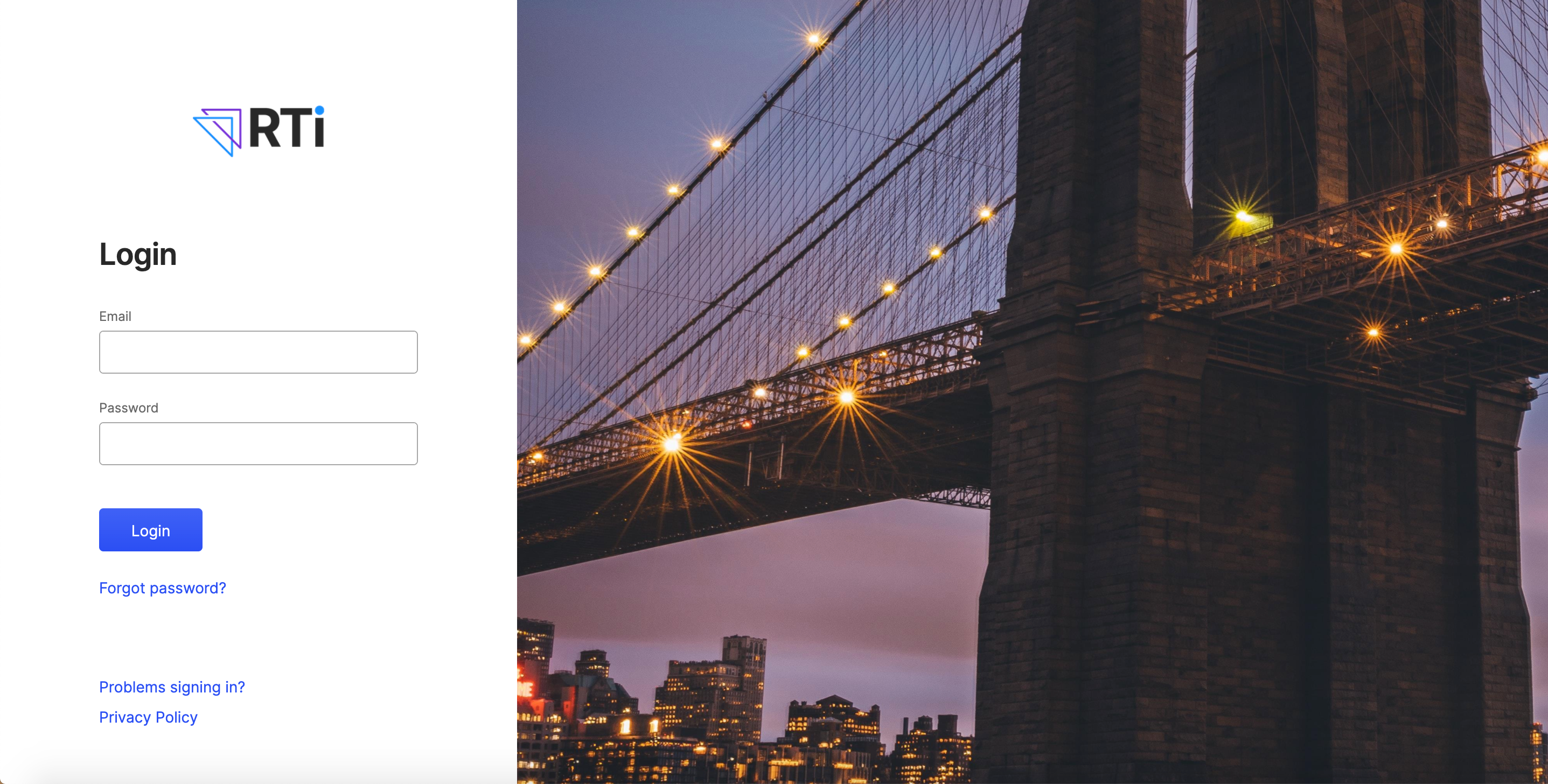
A branded login page on Sales Portal and Payee Web Classic can make a more personal and customized experience for web users. You can now change the background of the Sales Portal login page to a theme of your choice by following these steps:
Note
The maximum size of the image that you can upload is 10MB.
Click → → .
Under Background image, click .
Select the image that you want to use as the login page background and click .
From the list of images, click the image that you would like to use as the login page background.
To add another background image, click Upload image. You can add up to 4 images.
Click .
Click to dismiss the success notification.
Now, when users log in to Sales Portal, they'll see the background of your choice.
Changing the Sales Portal navigation theme
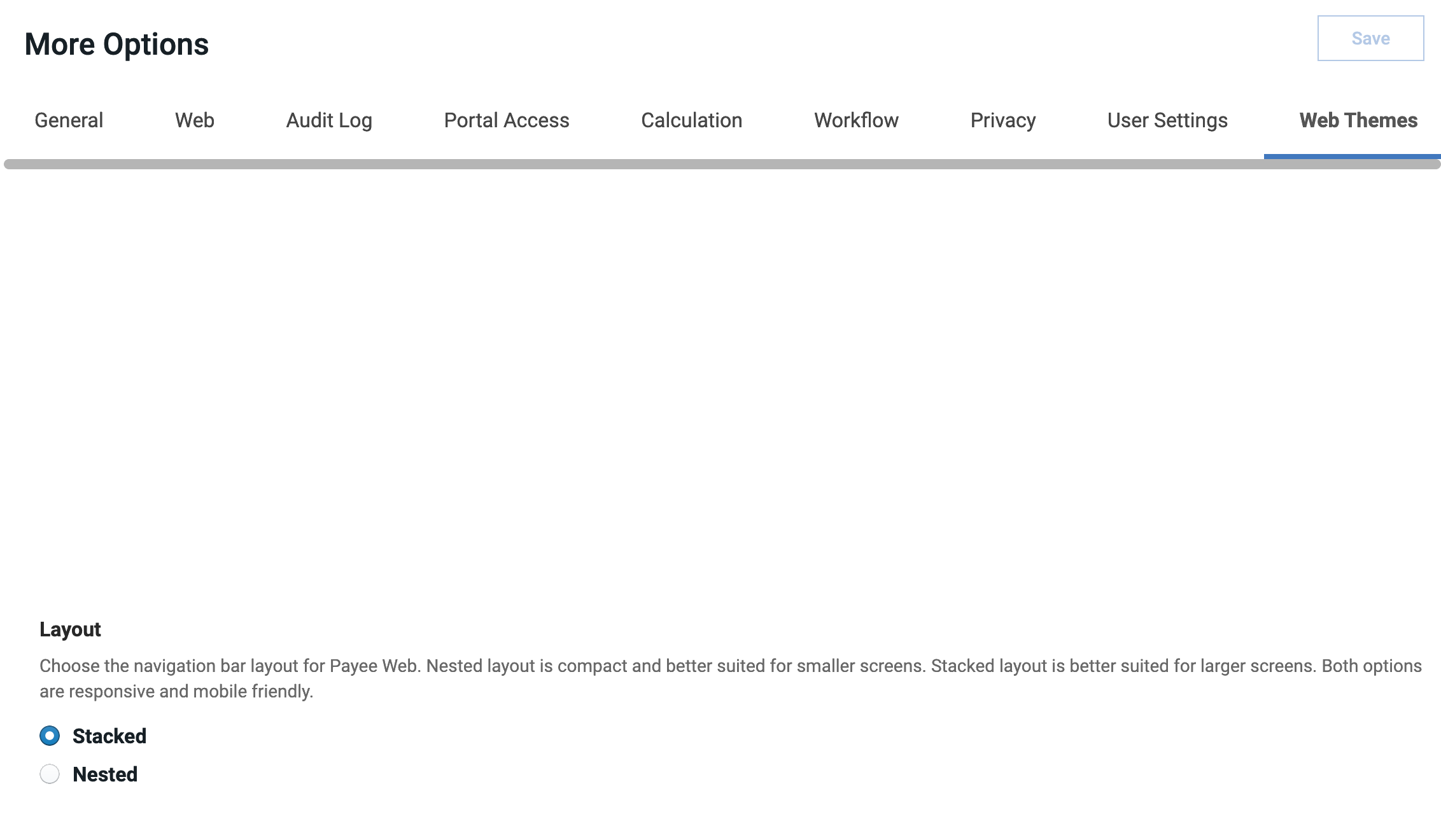
The default navigation bar layout is stacked, which is better suited for larger screens. With the stacked theme, you will always see all of your web tabs in the navigation, even if you have many layers.
 |
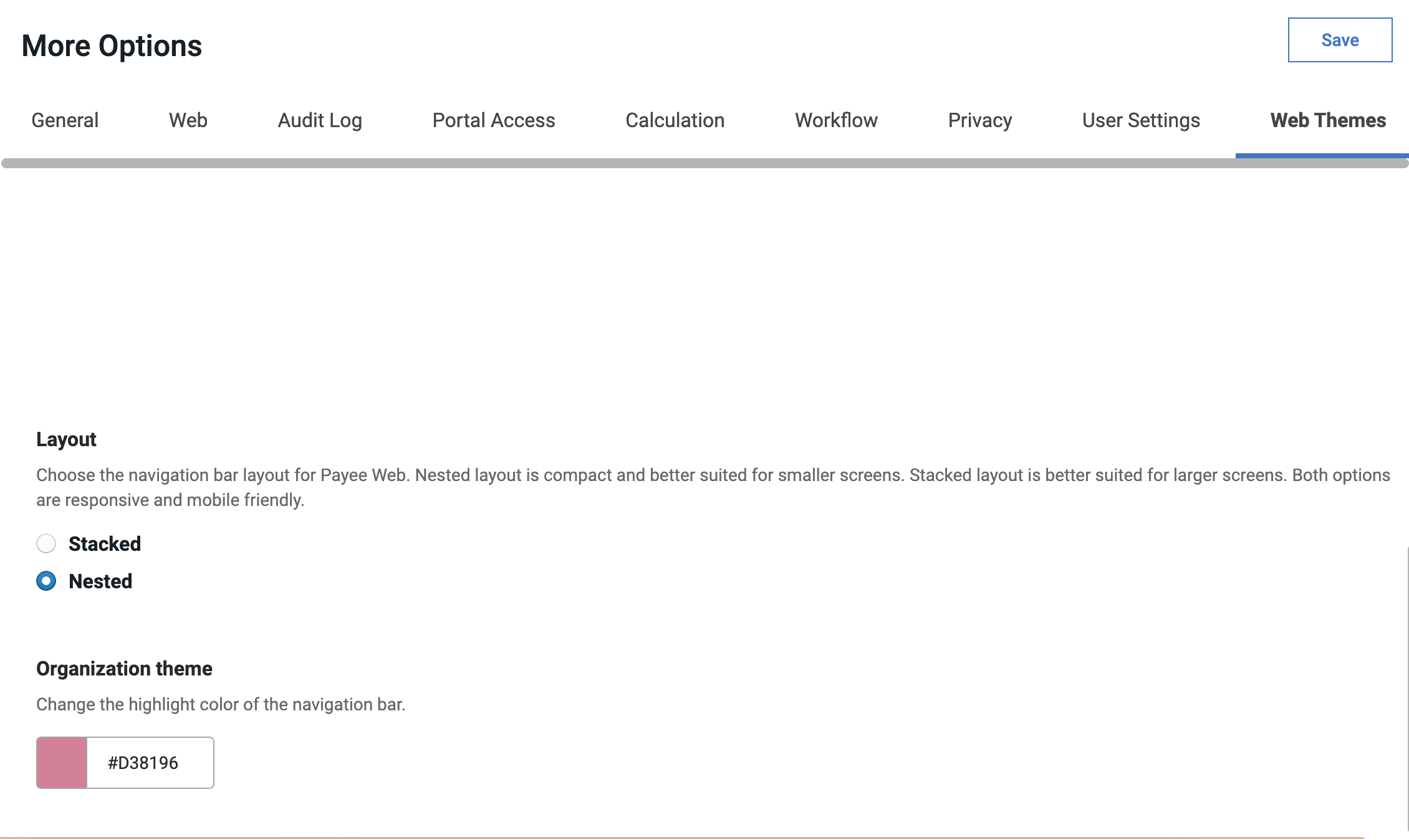
But you can change your navigation bar layout to nested. To change this setting, go to the Admin page → More Options → Web Themes and select Nested.
 |
The nested layout is compact and better suited for smaller screens. In this navigation, sub-tabs are hidden until you select the main tab, and then a drop-down navigation menu appears. You will also see some updated icons, as well as a new look to the Message Center.
 |
Also, with the nested navigation, you have the option to change the colour of the navigation bar that separates the web tab from the report window. To do this, select your chosen colour under Organization theme.
 |
Important
When you make any changes in the Web themes tab, make sure to click Save.
Adding a custom logo
In Incentives you can customize the logo that is displayed in Sales Portal.
From the Admin panel, click Model settings → More options.
Click the Web themes tab.
Under Header settings, select Enable custom header.
Under Organization logo, click Upload image and browse for the image that you want. The width of the image must be less than 250 pixels and the height must be a maximum of 80 pixels.
Click Open.
Click Save.
Disabling the Message Center
If you have other systems for inquiries or messages, you can disable the message center that is displayed in Sales Portal.
This also removes the Web Messages option from the admin web application and the Workflow Manager option from Sales Portal.
Go to → → .
Clear the Enable Message Center checkbox.